
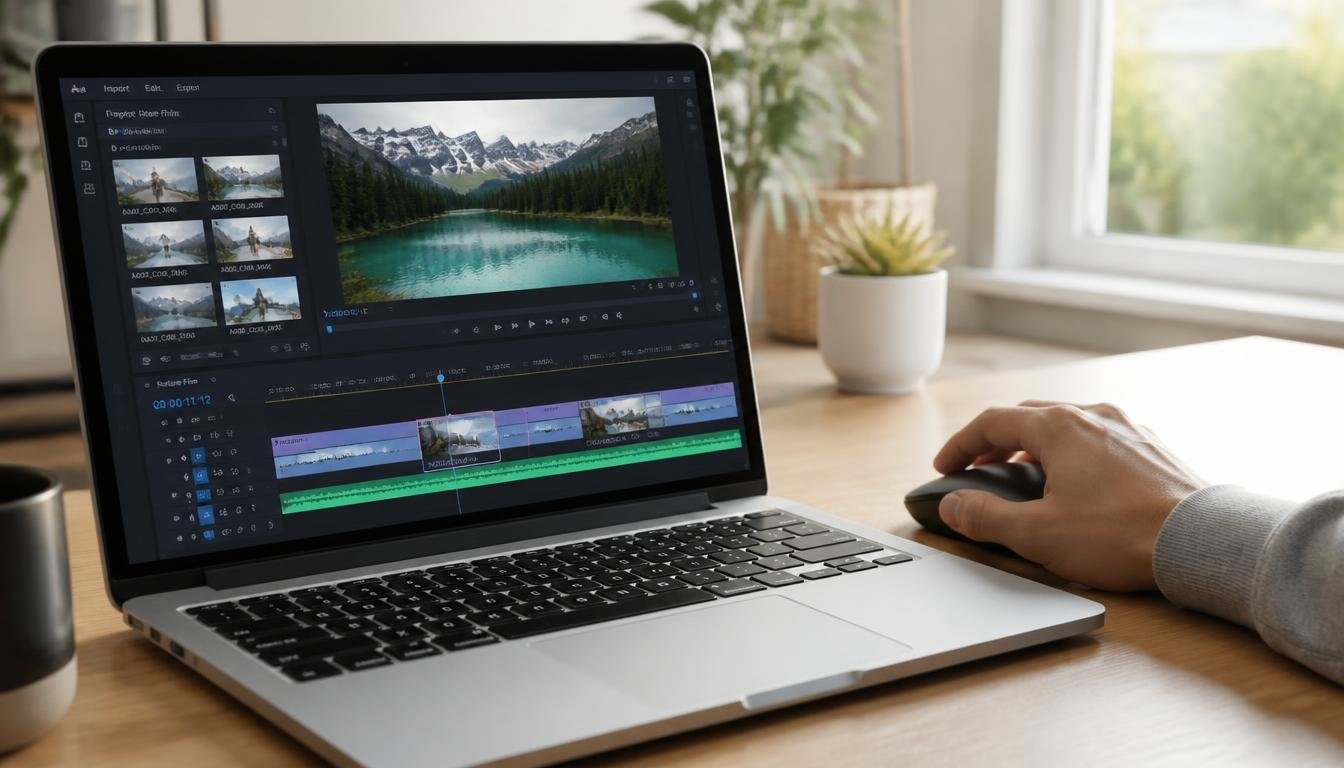
You know video works. Customers watch it, share it, and trust brands that show their faces. But the moment you open an editing program for the first time, the excitement fades. Hundreds of buttons, confusing timelines, and a price tag that makes you wonder whether you should just hire someone.
That frustration is common. Many owners buy the most powerful tool on the market, spend a weekend lost in menus, and never publish the video. Others pick a free app that watermarks every export and makes their business look amateur. Choosing the best video editing software is less about raw power and more about matching a tool to the videos you will actually make.
This guide compares five proven options for small business owners, marketers, and solo creators. You will see who each tool suits, where it falls short, and how to avoid the mistakes that waste time. If you are still planning what to film, start with our content marketing strategy guide, then come back to pick your editor.
Video also feeds the rest of your marketing. A good clip can power your social media posts, your landing pages, and your email list. The editor you choose is the first link in that chain.
Quick Answer
The best video editing software depends on your skill level, your computer, and your budget. Beginners who want fast social clips do well with CapCut. Owners who want professional results without a subscription should try DaVinci Resolve. Teams already inside Adobe’s ecosystem will like Premiere Pro. Mac users who want speed get a lot from Final Cut Pro. People who edit talking-head content, podcasts, or webinars should look at Descript. The guiding principle is simple: choose the tool you will open every week, not the one with the longest feature list.

Table of Contents
- What Is Video Editing Software and Why Your Business Needs It
- How to Choose the Best Video Editing Software
- The 5 Best Video Editing Software Options Compared
- Comparison Table
- Best Video Editing Software for Different Business Needs
- How to Edit a Marketing Video Step by Step
- Common Mistakes to Avoid
- Expert Tips
- Final Verdict
- Frequently Asked Questions
What Is Video Editing Software and Why Your Business Needs It
Video editing software lets you cut raw footage, arrange clips on a timeline, add music, captions, and graphics, and export a finished file for the web. Think of it as a word processor for moving pictures. You trim the mistakes, tighten the pacing, and add polish so the message lands quickly.
For a small business, editing is where raw footage becomes a sales tool. A rambling phone recording becomes a sixty-second product demo. A customer interview becomes a testimonial. A long webinar becomes ten short clips for social media.
The best video editing software also protects your brand. Consistent fonts, colors, logo placement, and intro styles make every video feel like it came from the same company. That consistency builds recognition, which supports every other channel you use, from paid ads to email campaigns.
Search is changing too. Video appears in search results and in AI-generated answers more often, which is one reason we explain why SEO is evolving into SEO plus AEO. Businesses that publish clear, well-edited video give search engines more to work with.
If you want a team to handle production for you, see our video production services.
How to Choose the Best Video Editing Software
Before you compare features, answer three questions honestly.
1. What kind of videos will you make most often? Short vertical clips for social media need different tools than a ten-minute YouTube tutorial or a polished brand film. List your top two formats first.
2. How much time can you spend learning? Some editors take an afternoon to learn. Others take weeks. If you have only a few hours a month, a simpler tool will beat a powerful one you never master.
3. What computer and budget do you have? Heavy editors need a fast processor, plenty of memory, and a decent graphics card. Light, template-based editors run fine on modest laptops. Also decide whether you prefer a monthly subscription, a one-time purchase, or a free plan. Prices and plans change often, so always confirm current pricing on the official site before you commit.
It also helps to think about accessibility. Captions make videos usable for deaf and hard-of-hearing viewers and boost watch time for people scrolling with the sound off. The W3C Web Accessibility Initiative guidance on audio and video explains why captions and transcripts matter. Pick software that makes captioning easy.
The Best Video Editing Software Available
1. DaVinci Resolve
Overview: DaVinci Resolve is a professional-grade editor known for its color grading tools, and it offers a capable free version. It combines editing, color correction, audio mixing, and visual effects in one program. That makes it attractive for businesses that want cinematic quality without paying a monthly fee. The trade-off is a steeper learning curve and a need for a reasonably powerful computer.
Key Features:
- Industry-respected color correction and grading
- Separate workspaces for editing, audio, and effects
- Free version with a generous feature set
- Strong export options for web and social
- Paid Studio version adds advanced tools
Best For: Owners who care about polished visuals and are willing to invest learning time.
Pros: ✅ Powerful free version ✅ Excellent color quality ✅ No required subscription
Cons: ❌ Steeper learning curve ❌ Demands a stronger computer
Our Verdict: If you want professional results and can spare a few weeks to learn, DaVinci Resolve offers outstanding value. Pair it with a clear plan from our on-page SEO checklist so your finished videos also help your pages rank.
2. Adobe Premiere Pro
Overview: Premiere Pro is a long-standing standard among professional editors and agencies. It works well with other Adobe apps, so you can move clips into After Effects for animation or Photoshop for graphics. It runs on both Windows and Mac and offers a deep library of tutorials and templates. It is sold by subscription, which suits teams that want constant updates but frustrates people who dislike monthly bills.
Key Features:
- Deep integration with other Adobe apps
- Text-based editing and auto-caption tools
- Works on Windows and Mac
- Large community, tutorials, and plugin ecosystem
- Flexible export presets for every platform
Best For: Businesses and agencies that already use Adobe tools or collaborate with freelancers.
Pros: ✅ Industry standard ✅ Huge learning resources ✅ Connects with design tools
Cons: ❌ Subscription only ❌ Can feel complex for beginners
Our Verdict: Premiere Pro makes sense if your team already lives in Adobe or may hand projects to outside editors. If you design thumbnails and graphics too, read how it fits alongside the 14 Google tools that make your online journey easier.
3. CapCut
Overview: CapCut is built for quick, trendy short-form video. Its templates, automatic captions, effects, and music tools help you turn clips into social-ready posts in minutes. It runs on phones and computers, which suits owners who film and edit on the same device. Because it favors speed over precision, it is less suited to long, complex projects.
Key Features:
- Template library for reels and short clips
- Automatic captions and subtitle styling
- Mobile and desktop versions
- Simple drag-and-drop timeline
- Built-in music and effects
Best For: Beginners and social-first businesses posting several short videos a week.
Pros: ✅ Very easy to learn ✅ Fast results ✅ Great for vertical video
Cons: ❌ Limited advanced control ❌ Some features sit behind a paid plan
Our Verdict: CapCut is the quickest way to start publishing. Combine it with a scheduler from our guide to the best social media scheduling tools and you can keep a steady posting rhythm without burning out.
4. Final Cut Pro
Overview: Final Cut Pro is Apple’s professional editor for Mac. It is known for smooth performance on Apple hardware, an intuitive magnetic timeline, and a one-time purchase model rather than a subscription. It is a strong fit for creators who work entirely inside the Apple ecosystem. It does not run on Windows, which rules it out for many teams.
Key Features:
- Optimized for Apple computers
- Magnetic timeline that keeps clips organized
- Fast rendering and exporting
- Built-in titles, effects, and audio tools
- One-time purchase option
Best For: Mac users who publish regular YouTube or brand videos.
Pros: ✅ Fast and smooth on Mac ✅ No subscription ✅ Clean, logical layout
Cons: ❌ Mac only ❌ Smaller plugin and template market than Adobe
Our Verdict: If you own a Mac and want a serious editor without monthly fees, Final Cut Pro is a smart choice. It is especially useful for creators following the advice in our YouTube marketing services.
5. Descript
Overview: Descript takes a different approach: you edit video by editing a written transcript. Delete a sentence in the text, and the matching video disappears. That makes it excellent for interviews, webinars, podcasts, and training videos where speech carries the message. It is less suited to heavy visual effects or cinematic projects.
Key Features:
- Text-based editing from an automatic transcript
- Filler word removal and audio cleanup tools
- Screen recording built in
- Captions and clip creation for social media
- Collaboration features for teams
Best For: Coaches, consultants, and teams producing talking-head content.
Pros: ✅ Editing feels like using a document ✅ Saves hours on interviews ✅ Easy captioning
Cons: ❌ Less suited to visual effects ❌ Subscription-based
Our Verdict: Descript turns long recordings into clips fast, which makes it a natural partner for your content calendar. Use it with the ideas in our best social media management tools roundup to repurpose every recording across channels.

Comparison Table
| Software | Best For | Learning Curve | Pricing Model | Platforms |
|---|---|---|---|---|
| DaVinci Resolve | Polished, cinematic results | Steep | Free version plus paid Studio | Windows, Mac, Linux |
| Adobe Premiere Pro | Teams in the Adobe ecosystem | Moderate to steep | Subscription | Windows, Mac |
| CapCut | Fast social clips | Easy | Free plus paid tier | Mobile, desktop, web |
| Final Cut Pro | Mac-based creators | Moderate | One-time purchase | Mac |
| Descript | Talking-head and podcast video | Easy | Subscription with free tier | Windows, Mac, web |
Always confirm current pricing and features on each vendor’s website, since plans change frequently.
Best Video Editing Software for Different Business Needs
Social Media Videos
Short vertical clips live or die on speed. You need templates, automatic captions, and quick exports. CapCut leads here, with Descript a strong choice when your clips come from longer recordings. Keep videos under a minute, open with a hook in the first two seconds, and add captions every time.
Plan your posting rhythm with the best social media scheduling tools and track results with the best social media management tools. For deeper context on what hurts performance, read our list of 25 digital marketing mistakes.
YouTube and Long-Form Content
Longer videos need better organization, stronger audio control, and reliable chapter markers. DaVinci Resolve, Premiere Pro, and Final Cut Pro all handle this well. Pick the one that matches your computer and your budget, then build a repeatable template for intros, lower-third name titles, and end screens.
Good titles and descriptions matter as much as the edit. Apply the same discipline you would use in our on-page SEO checklist to every upload. If you sell locally, point viewers toward your profile using ideas from our local SEO guide.
Website, Landing Page, and Email Videos
Videos on a sales page should be short, clear, and focused on one action. A thirty-to-ninety-second explainer can lift understanding, but it should never slow the page down. Export at a sensible file size and host the video on a reliable platform.
Your site needs a solid foundation first. See our guides to the best website builders for small business and best web hosting for small business. Then promote the video through the best email marketing software.

How to Edit a Marketing Video Step by Step
Step 1: Plan and Organize
Write a one-sentence goal for the video and a short outline before you film. Create a folder for footage, music, logos, and exports. Good organization saves more editing time than any single feature.
Step 2: Import and Rough Cut
Import your clips and drop them on the timeline in order. Remove mistakes, long pauses, and repeated takes. Do not worry about polish yet. Your only goal is the story.
Step 3: Tighten the Pacing
Trim each clip so every second earns its place. Cut to a new angle, graphic, or caption every few seconds to keep attention. For talking-head videos, remove filler words and dead air.
Step 4: Add Audio, Captions, and Graphics
Clean the audio first, because viewers forgive average video far sooner than bad sound. Add background music at a low volume, burn in captions, and place your logo and a clear call to action near the end.
Step 5: Export and Review
Export using the preset for your platform, then watch the file once on your phone and once on a computer. Check the sound, captions, and text size. Upload only after the review.
Common Mistakes to Avoid
Buying software that is too advanced. A powerful editor you never learn is worse than a simple one you use weekly. Start with the easiest tool that meets your needs. This is one of many errors we cover in 25 digital marketing mistakes costing you customers.
Ignoring audio quality. Viewers leave quickly when sound is muffled or uneven. A cheap external microphone improves a video more than a new editor does.
Publishing without a goal or call to action. A beautiful video that sends viewers nowhere earns nothing. Decide what you want people to do, then connect the video to a page built to convert, like the ones in our guide to landing pages that convert.
Expert Tips
Build templates once and reuse them. Save your intro, lower thirds, caption style, and end screen as a project template. You will cut every future edit by a large margin and keep your branding consistent.
Edit for the muted viewer. Many people watch on mute. Use big, readable captions and visual cues so the video makes sense without sound.
Repurpose every long video. One interview can become a full video, five short clips, a quote graphic, and a newsletter section. If you want ideas on using AI to speed that process up, see our guide on how to make money with AI.

Final Verdict: Which Is the Best Video Editing Software?
There is no single winner for every business, but clear favorites exist for each situation.
- Best overall for quality and value: DaVinci Resolve
- Best for beginners and social clips: CapCut
- Best for Adobe users and teams: Adobe Premiere Pro
- Best for Mac users: Final Cut Pro
- Best for talking-head and podcast video: Descript
Start with a free trial or free version of two tools, edit the same short project in each, and keep the one that feels natural. Then build a repeatable weekly workflow.
When you are ready to scale, explore our paid advertising platform comparison, our email marketing guide, and our invoicing software roundup so the new customers your videos attract are easy to bill and keep.
Frequently Asked Questions
Do I need paid software to make professional videos?
Not always. Several capable editors offer free versions that cover the basics. Paid plans usually add advanced effects, extra storage, or removal of watermarks. Test the free tier first and upgrade only when a specific limitation slows you down.
What is the best video editing software for beginners?
CapCut and Descript are the easiest to learn for most people. Both use simple layouts and automatic captions. If you prefer a more traditional timeline with room to grow, DaVinci Resolve’s free version is a strong next step.
How long does it take to learn video editing?
You can make a basic edit within an afternoon in an easy tool. Becoming comfortable with a professional editor often takes several weeks of regular practice. Following a few tutorials and editing real projects speeds up the process.
What computer do I need for video editing?
Light, template-based editors run on most modern laptops. Professional editors benefit from a fast processor, plenty of memory, and a dedicated graphics card. Check each vendor’s official system requirements before you buy or subscribe.
Is DaVinci Resolve better than Premiere Pro?
It depends on your needs. Resolve is famous for color work and offers a strong free version. Premiere Pro integrates smoothly with other Adobe apps and has a larger library of tutorials. Try both on a short project and compare.
Can I edit videos on my phone?
Yes. Mobile apps such as CapCut handle trimming, captions, music, and exports well. For long videos or detailed audio work, a desktop editor still gives you more control and precision.
What video format should I export for social media?
Most platforms accept MP4 files. Vertical 9:16 works best for short-form feeds, while 16:9 suits YouTube and websites. Use your editor’s built-in platform presets to avoid cropping and quality problems.
How do I add captions to my videos?
Most modern editors can generate captions automatically. Review them carefully, fix names and technical terms, and style them so they stay readable on small screens. Captions improve accessibility and keep viewers watching.
Why does my video look blurry after uploading?
Blurriness usually comes from low export settings, heavy platform compression, or filming in poor light. Export at the highest sensible resolution, use good lighting, and keep clips steady. Check each platform’s recommended upload settings.
Should I hire an editor instead?
If you publish only occasionally or need broadcast-level polish, hiring a professional can save time. If you post often, learning a simple tool gives you speed and control. Many businesses do both. Learn more about our video production services.
Author: Digi Monetize Team
Last Updated: November 2026


