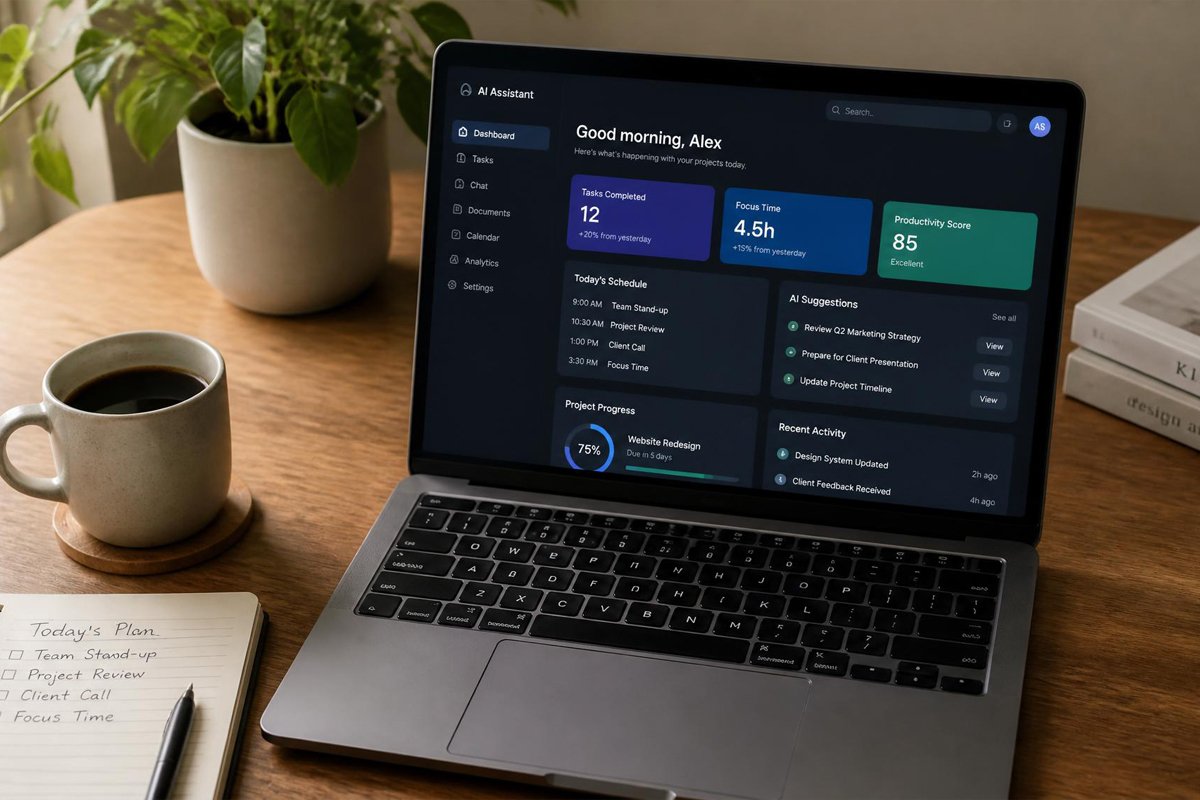
Remote work solved one problem and created another. You got rid of the commute, but you also lost the natural boundaries an office gave you — the shared calendar everyone actually checked, the coworker who’d tap your shoulder instead of sending a fifth Slack message, the clear line between “at work” and “at home.” A lot of remote workers end up doing more hours of administrative work just to stay organized, which leaves less time for the actual job.
AI productivity tools exist to close that gap. Instead of manually triaging your inbox, rewriting the same meeting notes, or guessing which task actually deserves your best focus hour, AI tools can now handle the repetitive layer of remote work so you can spend your energy on what the job actually needs. If you’re also building the skills side of remote work, our guide on top remote job skills companies are hiring for right now pairs well with this list — skills get you the role, these tools help you keep up once you’re in it.
This guide walks through the best AI productivity tools for remote workers in 2026, how to choose the right ones for your setup, and the mistakes that turn a promising tool stack into just more apps to manage.
Quick Answer
The best AI productivity tool for remote workers depends on your biggest bottleneck. If email and messages eat your day, Superhuman AI or Gmail’s Gemini integration triage and draft replies for you. If meetings are the problem, Otter.ai or Fireflies.ai transcribe and summarize automatically so you’re not stuck writing notes after every call. If task and project management is scattered, Notion AI or ClickUp AI organize and prioritize your to-do list based on deadlines and context. And if focus itself is the issue, Motion uses AI to auto-schedule your day around your real priorities. The one-sentence principle: pick tools that remove a task from your plate entirely, not tools that just add another dashboard to check.

Table of Contents
- What Are AI Productivity Tools and Why Remote Workers Need Them
- How to Choose the Right AI Productivity Tools for Your Setup
- Best AI Productivity Tools for Remote Workers in 2026
- Comparison Table
- Best AI Tools for Different Remote Work Challenges
- How to Build an AI Productivity Stack Correctly
- Common Mistakes
- Expert Tips
- Final Thoughts
- Frequently Asked Questions
What Are AI Productivity Tools and Why Remote Workers Need Them {#what-are-ai-tools}
AI productivity tools use automation and language models to handle the repetitive, low-judgment parts of a workday — summarizing, scheduling, drafting, prioritizing — so the time you spend actually working goes toward things that need a human decision. For remote workers specifically, this matters more than it does in an office, because remote roles tend to generate more asynchronous communication (emails, Slack threads, recorded meetings) that someone still has to process manually without AI help.
According to the World Economic Forum’s Future of Jobs Report, organizations increasingly expect employees to work alongside AI tools as a core part of the job, not as an optional add-on (World Economic Forum). For remote workers, being fluent with these tools isn’t just a productivity boost — it’s becoming part of how remote roles are evaluated. If you want the bigger picture on where this is heading, our personal development trends for 2026 article covers how AI fluency fits into overall career growth.
How to Choose the Right AI Productivity Tools for Your Setup {#how-to-choose}
Before adding any new tool, ask yourself:
1. What’s actually costing me the most time each week? Don’t guess — track a normal week and note where time disappears. Email? Meetings? Task-switching? The answer should decide which category of tool you try first.
2. Does this tool replace a task, or just organize one? A tool that drafts your email replies replaces work. A tool that just gives you a prettier to-do list only reorganizes work you still have to do. Prioritize the former.
3. Will this integrate with what I already use? An AI tool that doesn’t connect to your existing calendar, email, or project management system creates more friction than it removes. Check integrations before committing to a subscription.
If you’re still building your core remote-work skill set alongside these tools, our in-demand skills that can help you earn more guide is a useful companion piece.
Best AI Productivity Tools for Remote Workers in 2026 {#best-tools}
1. Notion AI
Overview: Notion AI is built directly into the Notion workspace most remote teams already use for docs, wikis, and project tracking. It can summarize long documents, draft content, auto-generate task lists from meeting notes, and answer questions based on your team’s existing pages.
Key Features:
- Summarizes long documents and threads instantly
- Auto-generates action items from notes
- Drafts and rewrites content in your workspace
- Works inside a tool most remote teams already use daily
Best For: Remote workers and teams who already live inside Notion for docs and project management.
Pros: ✅ No new app to learn if you already use Notion ✅ Strong for documentation-heavy remote roles ✅ Reduces time spent writing recurring updates Cons: ❌ Less useful if your team isn’t already on Notion ❌ Add-on cost on top of the base subscription
Our Verdict: The easiest AI productivity win if Notion is already part of your remote workflow — pairs naturally with the organizational habits covered in our best time-blocking planners and productivity notebooks guide.
2. Otter.ai
Overview: Otter.ai transcribes and summarizes meetings in real time, generating searchable notes and action items automatically so remote workers don’t have to choose between participating in a call and taking notes on it.
Key Features:
- Real-time transcription with speaker identification
- Automatic meeting summaries and action items
- Searchable archive of past meeting transcripts
- Integrates with Zoom, Google Meet, and Microsoft Teams
Best For: Remote workers who attend frequent video calls across time zones.
Pros: ✅ Frees you to actually participate in meetings ✅ Searchable history saves time re-explaining decisions ✅ Works across major video call platforms Cons: ❌ Transcription accuracy drops with heavy accents or crosstalk ❌ Free tier has limited monthly minutes
Our Verdict: One of the highest-leverage tools on this list — a single hour saved per week on meeting notes adds up fast over a year. Combine it with strong focus habits to protect the time it frees up.
3. Motion
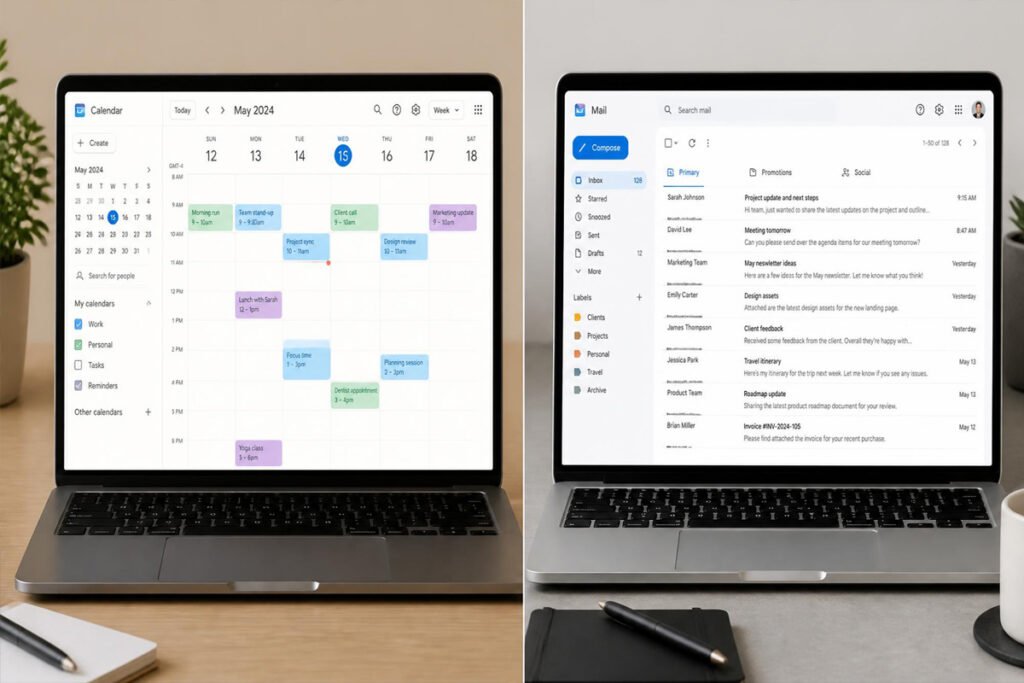
Overview: Motion uses AI to automatically build your daily schedule around your tasks, deadlines, and existing meetings, re-arranging your calendar in real time as priorities shift instead of leaving you to manually rebuild your day every time something changes.
Key Features:
- Auto-schedules tasks around existing meetings
- Re-prioritizes your day automatically when plans change
- Combines task management and calendar into one view
- Flags unrealistic deadlines before they become a problem
Best For: Remote workers juggling multiple projects with shifting priorities.
Pros: ✅ Removes the daily “what should I work on now” decision ✅ Adjusts automatically instead of requiring manual replanning ✅ Reduces the mental load of constant re-prioritizing Cons: ❌ Premium pricing compared to standalone calendar apps ❌ Can feel rigid if you prefer full control over your schedule
Our Verdict: Best suited for remote workers who juggle several projects at once. Works especially well alongside the remote job skills most in demand right now, since project-juggling is a core part of many remote roles.
4. Superhuman AI (Email)
Overview: Superhuman’s AI features triage your inbox, draft context-aware replies, and summarize long email threads, aimed at remote workers whose inbox has effectively become their main office.
Key Features:
- AI-drafted replies based on email context
- Automatic inbox triage and prioritization
- Thread summarization for long email chains
- Keyboard-first design built for speed
Best For: Remote roles where email is the primary communication channel.
Pros: ✅ Meaningfully cuts time spent on email daily ✅ Drafts sound close enough to your voice to just edit, not rewrite ✅ Strong for client-facing or high-volume-email roles Cons: ❌ One of the pricier tools on this list ❌ Overkill if your team communicates mainly through chat, not email
Our Verdict: Worth the cost if email genuinely eats a large chunk of your day — otherwise, a free AI email assistant built into Gmail or Outlook may cover most of what you need. This fits naturally into the freelancing skills toolkit for anyone managing multiple remote clients.
5. ClickUp AI
Overview: ClickUp AI adds task summarization, auto-generated project updates, and AI-assisted task creation on top of ClickUp’s existing project management platform, aimed at remote teams tracking multiple projects across time zones.
Key Features:
- Auto-generates status updates from task activity
- Summarizes long task threads and comment chains
- AI-assisted task and subtask creation
- Built into an existing full project management suite
Best For: Remote teams managing multiple projects who need less manual status reporting.
Pros: ✅ Cuts down on manual status update writing ✅ Works well for teams already using ClickUp ✅ Reduces context-switching between task tracking and communication Cons: ❌ Steeper learning curve if you’re new to ClickUp itself ❌ Best value requires a paid tier
Our Verdict: A strong pick for remote teams, less essential for solo freelancers — if you’re managing your own workload solo, Notion AI or Motion will likely serve you better.

Comparison Table {#comparison-table}
| Tool | Best For | Cost | Solves | Team or Solo |
|---|---|---|---|---|
| Notion AI | Docs & workspace | Add-on to Notion | Writing, summarizing | Both |
| Otter.ai | Meetings | Free tier / paid | Note-taking | Both |
| Motion | Scheduling | Paid | Daily planning | Both |
| Superhuman AI | Paid (premium) | Inbox overload | Both | |
| ClickUp AI | Project tracking | Add-on to ClickUp | Status updates | Team-focused |
Best AI Tools for Different Remote Work Challenges {#different-challenges}
If Meetings Are Draining Your Day
Combine Otter.ai for transcription with a rule: no meeting without a shared agenda and a clear decision to make. AI can summarize a meeting, but it can’t fix a meeting that never needed to happen in the first place.
If Your Schedule Feels Constantly Reactive
Motion or a similar AI scheduler works best paired with a weekly planning session — spend 15 minutes each Monday defining your real priorities, then let the AI handle the daily reshuffling around them. This complements the structured approach in our best time-blocking planners guide.
If You’re a Solo Freelancer, Not Part of a Team
Skip team-oriented tools like ClickUp AI and prioritize personal-productivity tools — Notion AI, Motion, or a general AI assistant for drafting client communication. This lines up closely with the tools discussed in our 10 digital skills you can learn at home and monetize article.
How to Build an AI Productivity Stack Correctly {#how-to-build}
Step 1: Identify Your Single Biggest Time Drain
Don’t build a full AI stack at once. Pick the one task category eating the most time — email, meetings, scheduling, or status updates — and solve that first.
Step 2: Choose One Tool, Not Three
Adding multiple new AI tools in the same week creates more friction than it removes. Implement one, use it for two full weeks, then decide if it’s earning its place.
Step 3: Set a Clear Boundary for AI-Drafted Content
Decide upfront which AI drafts you’ll send as-is versus which you’ll always personally edit — client-facing emails usually deserve a human pass, internal quick replies often don’t.
Step 4: Review What Time You Actually Saved
After two weeks, honestly assess whether the tool saved real time or just moved the same work somewhere else. Cut anything that didn’t.
Step 5: Reinvest the Saved Time Deliberately
The point of AI productivity tools isn’t to work longer — it’s to protect focus time for the work that actually matters. Use the time you free up for deep work, not more meetings.
Common Mistakes {#common-mistakes}
Adding too many AI tools at once. A stack of five new tools in one month means five new logins, five new habits to build, and usually none of them stick. Start with one, from the how to choose section above, and expand only once it’s proven useful.
Letting AI drafts go out unedited on high-stakes communication. AI-drafted replies are a starting point, not a final answer, especially for client or leadership communication. This matters even more if you’re building freelancing skills, where client trust depends on your voice sounding consistent.
Using AI tools to manage a schedule that’s fundamentally overloaded. No scheduling AI can fix a workload that’s genuinely too large. If your calendar is full no matter what tool you use, the fix is prioritization, not automation — our 50 daily habits guide covers habit-level changes that address this directly.
Expert Tips {#expert-tips}
Batch your AI-assisted tasks instead of using them reactively. Process AI-drafted emails or meeting summaries in two set blocks a day rather than the moment they arrive — this protects focus time the same way described in our noise-cancelling headphones for deep work guide.
Use AI summaries to prep for meetings, not just recap them. Ask your AI tool to summarize the last three related meeting notes before a follow-up call — this often surfaces context you’d otherwise have to dig for manually.
Pair productivity gains with real recovery time. Time saved by AI tools tends to get quietly filled with more work unless you protect it deliberately. Our best meditation apps for stress management roundup covers simple ways to actually use that reclaimed time to recover, not just work more.

Final Thoughts {#final-thoughts}
Best overall: Notion AI, if your team already lives in Notion. Best for meetings: Otter.ai, for the fastest, most obvious time savings. Best for scheduling: Motion, if your day constantly gets reshuffled. Best for solo freelancers: Notion AI or a general AI assistant, since you don’t need team-oriented features.
The real goal isn’t collecting AI tools — it’s protecting your time and attention for the work only you can do. Revisit our top remote job skills guide periodically to make sure your skill set and your tool stack are both keeping pace with where remote work is heading in 2026.
Frequently Asked Questions {#faq}
Do I need to pay for AI productivity tools, or are free versions enough? Free tiers of tools like Otter.ai or Notion AI cover most individual needs. Paid tiers mainly add higher usage limits, deeper integrations, or team features — worth it once a tool proves it saves real time.
How many AI productivity tools should a remote worker actually use? Two to three at most, each solving a distinct problem (meetings, scheduling, email). More than that usually creates management overhead that cancels out the time saved.
AI scheduling tools vs. manually planning my own day — which is better? It depends on how often your priorities shift. If your schedule is stable, manual planning works fine. If it changes daily, an AI scheduler like Motion reduces the mental cost of constant replanning.
Will using AI tools for email make my communication feel less personal? Not if you edit before sending, especially for client or leadership communication. Use AI drafts as a fast first pass, not a final answer, to keep your own voice intact.
Is it safe to use AI meeting transcription tools for confidential conversations? Check your company’s data policy first — some AI transcription tools store recordings or transcripts on external servers. For sensitive meetings, confirm the tool’s data handling before using it.
How do I know if an AI tool is actually saving me time? Track your time for two weeks before and after adopting a tool. If the numbers don’t clearly improve, the tool isn’t earning its subscription cost.
Can AI productivity tools help with freelance client management specifically? Yes — tools like Notion AI and AI email assistants are particularly useful for drafting client updates, proposals, and follow-ups quickly while still allowing a personal edit pass.
What’s the biggest mistake remote workers make with AI productivity tools? Adopting too many at once. Start with the single biggest time drain, solve it with one tool, and only add more once that one has proven its value.
Do AI productivity tools work well across different time zones? Yes, especially transcription and async-summary tools like Otter.ai, which let team members catch up on meetings they couldn’t attend live — a common challenge in distributed remote teams.
Will AI productivity tools replace the need for good time-management habits? No. AI tools remove friction and repetitive tasks, but the underlying habits — prioritizing, protecting focus time, setting boundaries — still have to come from you.
Author: Jhon Last Updated: August 2026